Showing posts with label Imaging Programs. Show all posts

Monday, February 9, 2009

Giveaway of the Day Review - Insofta Cover Commander 2.91


Today's giveaway is Insofta Cover Commander, which allows you to create screenshots and box shots of programs.

Installation

Installation was quick. Just install the program and run it. Register it using the name and key provided.

Ease of Use


Cover Commander has a straightforward work flow and interface. The first tab allows you to pick a project type, and subsequent tabs let you choose images and tweak the camera, lighting, shadows and reflections. If you don't want to adjust the sliders to change the values, you can "grab" the preview and twist it in all 3 dimensions. (Check out the video at the end of the review) The labels for these sliders are well-chosen and self-explanatory, and the preview allows you to see what you are adjusting.

The only time-consuming and tricky part is the creation of the front/back covers etc. You need to create them in your image editor first.

Features

Cover Commander offers an impressive collection of templates for creating DVD covers, CDs, and even spiral notebooks. Each of these templates are highly customisable. You can tweak the lighting, camera angles and apply shadows and reflections. Your customised settings can be saved as presets for re-use. You can't save all the settings as a single preset, though a quick workaround is to save the entire project, which preserves all your customised settings. 


I wished the program allows users to easily insert titles/ labels as text. Unfortunately, as mentioned earlier, you need to create all the images beforehand. Cover Commander only helps you put them together.

The end results are quite impressive, with smooth edges. You can export them to png (with transparency), bmp, gif and jpg. The same 4 formats can be imported into the program.

Rendering time was a bit slow, taking 10s to save a 400x400 image on my Pentium 4 PC. However, previews were rendered with no delay, albeit at a lower quality.

Summary

Insofta Cover Commander produces good-looking images and is easy to use. The large number of controls allow you to tweak the final image to your heart's content. No free alternative produces such impressive and customisable box shots. However, a tool to insert text would be a great time-saver. 

Rating: 4.5/5

giveawayoftheday.com

Free Alternatives


Continue Reading...

Tuesday, February 3, 2009

Giveaway of the Day Review - Binerus Image Commander

Binerus Image Commander 1.0 is a batch processing program for resizing images and adding watermarks, drop shadows, reflections etc. to them. As someone who frequently captures screenshots and uploads them to this blog, Image Commander seems a potential time-saver for me.

There are plenty of batch image processors, many of which are free. IrfanView and an older version of VSO Image Resizer are two examples. However, what Binerus Image Commander tries to do is more than the usual resizing/ cropping/ colour adjustments. It aims to also let you apply effects to a group of photos, useful for those who upload images.

Installation

No problems experienced. Just install and double click activation.exe.

Ease of Use

A grey-themed window with 4 buttons along the top greets you when you run the program. Everything on the right is greyed out, so I loaded a few pictures. The "add folder " button opens up a standard open dialogue instead of a "browse for folder" window. A good choice, in my opinion, as it allows users to view thumbnails of files and choose the correct folder. However, the lack of drag-and-drop support is slightly disappointing.
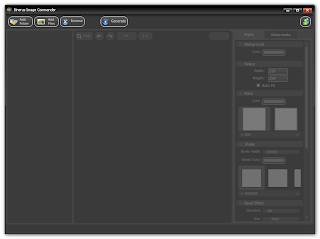


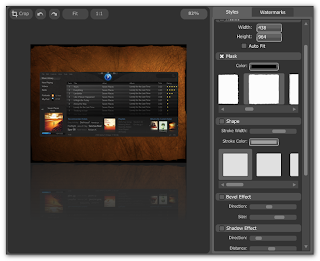
All processing is done from a pane on the right side, split into "Styles" and "Watermarks. The style panel allows you to resize images and apply masks, drop shadows, backgrounds, glows and reflections. The effects are fairly tweakable and with a minute's work, I was able to produce some reasonably good-looking screenshots.

Unfortunately, Binerus Image Commander suffers from some a couple of issues.

Firstly, the resize option is poorly implemented in my opinion. The "auto fit" option actually trims images (I expected it to an option to maintain aspect ratios of pictures). Doubling the height of a 400x300 image updates the preview accordingly, but the value of the width displayed remains at 300. This leads to confusion when I tried to increase the width - the image doesn't become larger until it hits 600. For such a important feature, improvements in this area is needed.
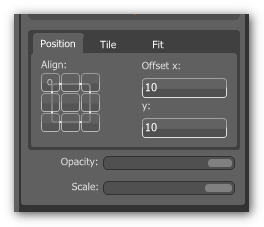


The other area which I feel can be improved on is how watermarks are positioned. The program allows you to position them based on x and y coordinates, or by clicking in a 3x3 grid representing the corners/edges of the image. The ability to click on watermarks and drag to position them would be a useful addition.

Zoom functionality is present, but not obvious - you need to scroll your mouse wheel up and down. The "Fit" button wasn't responsive on some images.

The program allows you to drag your mouse vertically and horizontally over width/height/opacity fields to change their values. A good feature in my opinion.

Features/ Performance

The usual effects such as shadows, glows and reflections are present. These effects are tweakable, you can adjust opacity, softness, distance etc. I would have liked to see the ability to import custom masks as the presets are quite limited. No perspective shadows here also.
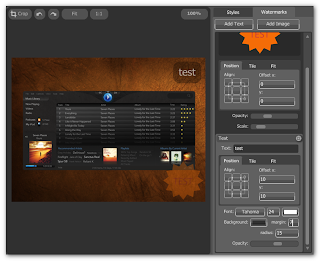


You can insert text watermarks or set another image as a watermark. For text watermarks, the program doesn't seem to support bold/italics styles, though you can change the text colour, size, font and background. The program allows you to tile watermarks over the entire image or position it in one corner.

A missing feature is the ability to save effect settings as a preset - an important one for people like me who need to process images often.

The program imports and exports jpg, bmp, gif and png files. Transparency is supported for reflections applied - just choose to save as png. You can add prefixes and suffixes to filenames when exporting them.
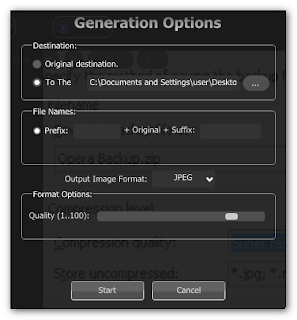


Processing speed is acceptable. Resizing, applying masks and shadows to a set of 50 images took 14 seconds on my 3.06Ghz Pentium 4 machine.

A bug - removing watermarks by clicking on the 'x' button closes the whole program. I'm sure this is not what the software's programmers intended.

Summary

Rating: 3/5

Image Commander has some usability issues that lowered my rating by a point. In terms of the range of effects this program allows you to apply, this is the best free program (at least for today) I can find.

Webmasters would probably want to take a look at the other free alternatives below, as the inability to save settings as presets may mean a thumbs down for them.

Free Alternatives

FastStone Photo Resizer - Lots of formats supported. Add effects by enabling "Show Advanced Options". Allows you to save presets/templates for repeated use.

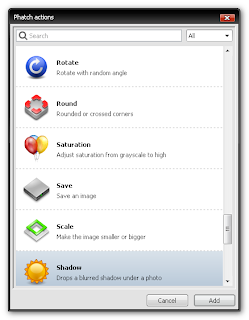
Phatch - Offers much more effects than Image Commander. Allows you to save presets and apply them to files via Windows Explorer context menus. Sadly, installation is a bit tricky (requires you to download and install Python) and no preview of results are available. Multi-platform.


Digital Image Tool 

BIMP Lite 

PhotoWham (thanks Ashraf!)

Useful link:

15 Useful Batch Image Processors

Download: 

Giveawayoftheday.com

Continue Reading...

Thursday, January 29, 2009

Giveaway of the Day review - Morpheus Photo Morpher

I wasn't too excited about the previous few Giveaways, and perhaps you'll notice that I didn't blog about the past few freebies given away. Today's program looks interesting, and I thought I'll download and test it out.

Installation

The installation process offers to install other "extras", but I disabled them. No suspicious/ sneaky  behaviour observed after I did so. Registration from the program itself also requires an internet connection, and the key provided was accepted with no problems.

Ease of use


Testing it out on a sample picture from wikipedia, my impression is that the program does a reasonable job morphing and rendering a gif file. A wizard and tutorials guide you through the steps.

I did run into problems at first. For example, after loading two photos, I wasn't able to start placing the markers onto them. I realized later that the zoom settings were set to 0.1%. The initial view presented was the "before" image, and I hoped I could see both before and after images on the screen at the same time. This was "resolved" when I restarted the program.

Placing the markers was easy, and the program colour-codes the dots to help you. I didn't really use the detailed controls for adjusting transparency and size of the dots though.

Features

Unfortuantely, it seems some of the menu options are unavailable in the "lite" version offered today. A prompt asks you to upgrade to the Industrial version for these features. Likewise, loading some of the samples provided resulted in similar prompts. 


While a wide variety of image formats can be imported, the only supported output format in the lite version is animated gif.


A crop tool would be nice also, as the two subjects may not be of the same relative size in their photos.

Summary

If you don't need output to video formats, Morpheus Photo Morpher would be an adequate tool that can bring some funny moments. (Unless you constantly get the screens nagging you to upgrade)

Alernative

FotoMorph (free for non-professional and non-commercial use) is an excellent alternative. I tested it briefly, and I strongly recommend it. It offers excellent output options also, including swf, avi and creation of screensavers.

Download

Giveawayoftheday.com

Continue Reading...